
Intune Multiple Managed Accounts: what admins need to know
Intune's MMA feature, rolling out in June 2026, lets users hold multiple MAM accounts in one app. Here's what admins managing external access need to know.
A contractor opens Teams and signs in with their second work account. The app prompts them to remove the first. That is not an enrollment problem. It is an app protection policy limit: one managed account per app, per publisher.
Microsoft’s answer is Multiple Managed Accounts (MMA), now rolling out in Intune MAM. It lets users run more than one MAM-managed account inside a single app, each governed by its own app protection policy. It is a meaningful change. But it comes with specific limitations that matter a lot if your use case involves external partners, B2B guest accounts, or users whose device is already enrolled elsewhere.
For a comparison between MAM-only and full MDM enrollment, see the Unmanaged Devices with Intune series.
Key Takeaways
- MMA allows multiple MAM-managed accounts in one app, each with its own app protection policy enforced independently
- Currently supported in Microsoft Teams on iOS/iPadOS v8.10.0 or later. Additional apps and platforms are coming.
- Mixed-view apps like Outlook always apply the most restrictive policy of all active managed accounts, even if individual policies are more permissive
- Without Cross-Tenant Access Settings (CTAS), B2B guest accounts cannot be targeted by MAM-based Conditional Access from the resource tenant. With CTAS inbound trust enabled, device compliance-based CA (“Require compliant device”) is the right control layer for external users
- Admins have no direct toggle to enable or disable MMA. Enforcement depends on platform settings and app participation
What are multiple managed accounts for app protection policies?
MMA is not a policy setting. It is a capability of App Protection Policies that requires explicit app participation. Only apps that have completed MMA integration support it. Not every app does. When an app does, users can sign in with more than one managed identity in the same instance. Intune enforces each account’s app protection policy independently, based on what the admin of that account’s tenant has configured.
Before MMA, apps without this support were single-identity or legacy multi-identity applications. Adding a second managed work account would prompt the user to remove the first. The only practical answers were a second device or a second app install.
MMA removes that constraint in supported apps. The admin of each account controls the policy for that account.
Microsoft Learn: Multiple Managed Accounts for App Protection Policies | App Protection Policies overview
Who actually runs into this problem?
The organizations that hit this first are not the ones running tight single-tenant environments. They’re the ones with porous edges: freelancers, outsourced IT teams, managed service providers, and companies that routinely bring external parties into their Microsoft 365 environment.
Three scenarios come up most often in the tenants I work with:
Consultants and contractors working across clients. A security consultant might have an active account in their own firm’s tenant (MDM and MAM managed) and need a second account at a client organization (MAM-only). Before MMA, one of those accounts had to give way.
Companies with embedded partner staff. Think of an organization that has embedded finance staff from an external accounting firm, or a logistics company whose warehouse systems are managed by a vendor team. These people need to access your Teams channels and your data. Their device may already be managed by their own employer.
Post-merger transitions. Two tenants exist in parallel during an integration period. Employees need both their legacy account and their new account active in the same app. Previously, asking people to use two separate devices was the only clean answer.
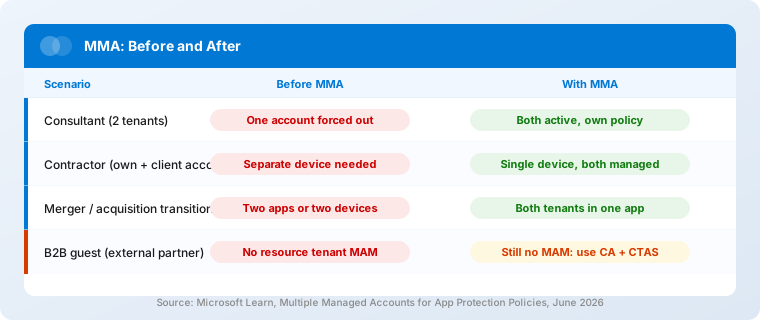
What about partners and external users?
This is where the nuance matters most, and where I see the most confusion.
If your organization invites an external party as a B2B guest in Microsoft Entra ID, that guest account lives in your tenant but the user’s device is not enrolled in your Intune. Here’s the limitation that doesn’t change with MMA: without Cross-Tenant Access Settings (CTAS) configured, MAM-based Conditional Access from the resource tenant cannot target a guest account. The CA grant control “Require app protection policy” requires device registration in the resource tenant, and a guest user can only register their device with their home tenant. With CTAS inbound trust configured, the resource tenant can trust the home tenant’s device compliance claims, enabling the “Require compliant device” grant control as a workaround. That is an explicit configuration step most organizations have not completed, and it does not make MAM-based CA work for guests.
What MMA actually helps with in the external user case is the reverse direction. The partner’s device is managed by their employer. With MMA, they can add your tenant’s account as a MAM-only account alongside their own organization’s managed account. Your Intune policy protects your data inside the app on their device: your policy, your controls, independent of theirs. That is the scenario MMA was built for. You don’t need to enroll their device. You don’t need them to remove their employer’s management. You just need them to sign in with your account in a MMA-supported app.
For the classic B2B guest scenario (where the external user is a guest in your tenant, not the other way around), Conditional Access remains the correct control layer. You can enforce device compliance through a CA policy that targets guest users and requires either a compliant device or a managed app with protection policies. That’s a different lever than MAM, but it’s the appropriate one.
Microsoft documents the Conditional Access approach for external identities in the multitenant user management guide.
What is the difference between segmented and mixed view?
MMA-capable apps handle multiple managed accounts in one of two ways. Understanding the difference matters before you start troubleshooting policy enforcement complaints.
Segmented view shows data for one account at a time. Teams is an example. The user switches between accounts manually. Policy enforcement applies to whichever account is active: PIN prompts, data transfer restrictions, and conditional launch checks all trigger in the context of the active account. If Account A has a strict PIN requirement and Account B does not, the user only sees the PIN prompt when Account A is in focus.
Mixed view shows data from multiple accounts in a combined interface: a unified inbox or a merged calendar. Outlook is an example. The distinction here is critical: mixed view apps always apply the most restrictive behavior of all active managed accounts, regardless of what individual policies say.
In a mixed view, cut, copy, and paste are fully disabled within and outside the app view, unconditionally. This is not triggered by any individual account’s policy setting. It applies regardless of what the separate account policies permit. Screenshots are blocked in the same way. This behavior applies even when there is only a single managed account alongside unmanaged personal accounts.
What surprises users is that the mixed-view lockdown isn’t a bug. It’s the designed behavior, and it makes sense from a data protection standpoint: if data from two accounts can appear in the same view, enforcing the more permissive policy creates a data exfiltration path between them. The lockdown prevents that. In segmented-view apps like Teams, screenshot behavior follows the active account’s policy. In mixed-view apps like Outlook, there is no per-account distinction. But it will generate helpdesk tickets from users who don’t understand why they suddenly can’t copy content from their Outlook calendar.
What can admins actually control?
MMA is a capability, not an admin toggle. There is no switch in the Intune admin center to enable or disable it. It activates automatically in apps that support it when users sign in with multiple managed accounts.
There is one indirect control for iOS. The IntuneMAMAllowedAccountsOnly setting restricts an app to a single managed account on managed devices. This setting predates MMA and was not designed as an MMA control, but its effect is that MMA is disabled even in apps that otherwise support it. If your organization needs to restrict devices to one managed account, this setting achieves that on iOS.
On Android, the MMA documentation does not list an equivalent setting. No indirect restriction is currently documented for that platform.
You also cannot limit which accounts a user adds through MMA using first-class admin controls. If the app supports MMA and the user has another MAM-eligible account, they can add it. Your policy still applies to your data. But you cannot prevent the user from adding an account from another tenant.
How does MTD work when users have multiple tenant accounts?
Mobile Threat Defense adds a layer of complexity in multi-tenant scenarios that is worth understanding before you deploy MMA at scale.
MTD evaluates threat levels at the device level, tied to the Microsoft Entra device record. It does not evaluate threat per managed account.
In same-tenant scenarios, if two accounts from the same tenant share an MTD provider, they share the same device record. One account logging into the MTD app sets the device threat level for both. Each account’s app protection policy is still evaluated independently, but the threat level they’re evaluated against is shared.
In cross-tenant scenarios, each tenant has its own device record in Microsoft Entra. An MTD provider may report threat levels separately per tenant. The exact behavior depends on how the MTD provider integrates with Entra. Before relying on MTD enforcement for multi-account scenarios, verify the specific behavior with your MTD vendor.
What are the current limitations of MMA?
MMA was announced via MC1290818 on April 24, 2026. The rollout began in early June 2026 and runs through early July 2026. It is not yet available in all tenants.
Currently supported: Microsoft Teams on iOS/iPadOS v8.10.0 or later. Microsoft has announced that support for additional apps and platforms is coming soon, but has not confirmed specific apps or platforms by name in the current documentation. Intune-wrapped apps are explicitly out of scope. Only apps built with the Intune SDK are in scope for MMA.
Only one MDM-enrolled account per device is supported. Additional accounts can be MAM-only. Multiple MDM enrollments on a single device remain unsupported, and MMA does not change that.
What does MMA mean for your organization?
MMA activates automatically in supported apps. No enablement step is required. But that also means it can arrive in your environment before you’ve planned for it. Microsoft issued MC1290818 on April 24, 2026, specifically to give admins preparation time. The rollout runs through early July 2026.
Three things to do before MMA reaches your tenant:
Audit your existing App Protection Policies. Some settings unintentionally block MMA. On iOS, IntuneMAMAllowedAccountsOnly restricts apps to a single managed account and effectively disables MMA. The “Allow org accounts only” setting has a similar effect. Review these settings with intent. If your organization wants to allow multiple managed accounts, verify these restrictions are not active. If you want to prevent MMA, these settings give you indirect control on iOS.
Verify Teams iOS version for contractors and partner staff. MMA only activates in Teams on iOS v8.10.0 or later. Users on older versions won’t see the feature. Before communicating MMA availability to your workforce, confirm which devices meet the version requirement.
Prepare your helpdesk for mixed-view questions. As more apps gain MMA support, users with two managed accounts in a mixed-view app will hit the full lockdown: copy/paste blocked, screenshots blocked. This is by design and cannot be disabled per account. A short explainer for your helpdesk will reduce escalations significantly.
Frequently asked questions
Does MMA work on Android today?
Not yet. Multiple Managed Accounts is currently available in Microsoft Teams on iOS/iPadOS v8.10.0 or later. Android support and additional apps are planned but no release date has been announced (Microsoft Learn, 2026). See the MAM frequently asked questions for additional enrollment and identity guidance.
Can I apply my organization’s MAM policy to a B2B guest user?
Not directly. Without Cross-Tenant Access Settings (CTAS) configured, MAM-based Conditional Access from the resource tenant cannot target guest accounts. The CA grant “Require app protection policy” requires device registration in the resource tenant, and a guest user can only register their device with their home tenant. With CTAS inbound trust configured, the resource tenant can trust device compliance claims from the home tenant, enabling the “Require compliant device” grant control as a workaround. Without CTAS, exclude external users from MAM-based Conditional Access policies and use device compliance-based CA instead.
What will mixed-view lockdown look like when apps like Outlook gain MMA support?
Outlook is not yet supported for MMA. It is used in the Microsoft documentation as the conceptual example of how a mixed-view app will behave once MMA support is added. When that happens, the lockdown will be unconditional: copy/paste blocked, screenshots blocked, and the most restrictive behavior of all active policies applied, regardless of what individual account policies permit. Users will not be able to selectively relax this per account. That is by design.
Can I prevent users from adding a second managed account in an app?
There is no admin control that selectively blocks accounts from specific tenants. MMA does not offer per-tenant filtering. What you can do on iOS is disable MMA entirely: enabling IntuneMAMAllowedAccountsOnly restricts the app to a single managed account, which effectively turns off MMA even in apps that otherwise support it. The “Allow org accounts only” setting on iOS has the same effect. On Android, no equivalent setting is currently documented. Your app protection policy continues to govern your data regardless of what other accounts the user adds.
Does MMA affect devices enrolled in full MDM?
On MDM-enrolled devices, MMA-enabled apps can sign in with managed accounts that do not match the MDM enrollment account. This is expected behavior. Only one MDM account per device is supported. Additional accounts added through MMA are MAM-only.
MMA is a genuine step forward for organizations that manage external relationships through Microsoft 365. The consultant who works across three clients no longer has to choose which account to keep active. The partner team embedded in your environment can be on your Teams policy without surrendering control of their own device to you.
The B2B guest scenario remains a separate problem with a separate solution. MMA doesn’t change the architecture there. Conditional Access does.
Where I’d focus first: verify that your Teams-using contractors and embedded partner staff are on Teams iOS v8.10.0 or later, and check whether any of your app protection policies use settings that would conflict with MMA behavior. The rollout is gradual, which means your users may already be seeing this before you’ve planned for it.
Microsoft’s full App Protection Policy configuration reference is on Microsoft Learn.