
Conditional Access enforcement changes June 15: check your exceptions now
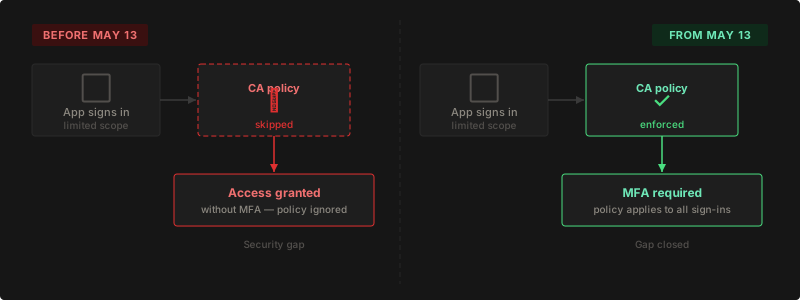
Apps could bypass Conditional Access by requesting minimal sign-in scopes. Non-excluded apps slipped through silently for years. Starting June 15, that stops.
Update June 14, 2026: June 15 is confirmed as the enforcement start date. Since May 15, Microsoft added a Baseline scopes settings page in Conditional Access that gives you direct control over rollout timing and per-policy behavior. Details are in the updated section below.
Update May 15, 2026: Microsoft extended the enforcement deadline. The rollout now begins on June 15, 2026 (previously May 13, 2026). Confirmed via the Microsoft Entra Tech Community blog. Scope and impact remain the same.
Most Conditional Access policies targeting all cloud apps have been silently skipping enforcement for years. Not for excluded apps. For apps that were never excluded at all: apps that should have required MFA, but didn’t, because Microsoft’s policy evaluation had a gap.
Starting June 15, 2026, that gap closes. If you have app exclusions in a Conditional Access policy targeting all resources, this is worth reading.
Conditional Access is the feature in Microsoft 365 that controls when a user needs to verify their identity before signing in. Think of it as the rulebook: sign in from an unknown device, prove it is you. Sign in from a foreign country, same. The problem is that rulebook has had a hole in it.
Key Takeaways
- Apps requesting only basic OAuth scopes (
openid,profile,User.Read) have been bypassing Conditional Access enforcement silently, not because they were excluded, but because Microsoft’s evaluation skipped the check- The fix rolls out starting June 15, 2026, phased over several weeks
- You are only affected if your CA policy targets All resources AND has resource exclusions configured. Check Message Center for MC1223829 to confirm
- Non-interactive scripts and automation will fail outright with no error. Interactive tools like VS Code and Azure CLI will prompt for MFA where they did not before
- Microsoft added a Baseline scopes settings page that lets you enable enforcement early, customize per policy, or temporarily opt out
What has been bypassing your policies all along?
Apps that request only basic sign-in information could bypass a Conditional Access policy even when they should have fallen under it. These are not apps on an exclusion list. They are apps that were never excluded, that should have been enforced, but weren’t, because Microsoft’s evaluation skipped the check when the requested data scope was minimal enough.
The specific OAuth scopes that triggered this bypass differ by client type. For confidential clients (web apps, services), sign-ins requesting only openid, profile, email, offline_access, User.Read, User.Read.All, User.ReadBasic.All, People.Read, People.Read.All, GroupMember.Read.All, or Member.Read.Hidden were skipping enforcement. For native clients and SPAs, the bypass applied to openid, profile, email, offline_access, User.Read, and People.Read.
The bypass is reproducible and leaves no obvious trace in your sign-in logs. Anyone who understands how OAuth scopes work can craft a sign-in request that hits only basic profile data and bypasses MFA on any tenant with this policy pattern. From June 15, Conditional Access applies consistently regardless of what scopes an app requests. Microsoft detailed this change in the Entra ID blog and notified affected tenants via MC1223829.
The rollout begins June 15 and is phased over several weeks. Not every tenant is switched at the same time. If you haven’t been affected yet, you will be.
What is the highest-risk scenario?
Scripts, scheduled tasks, and legacy integrations that authenticate non-interactively.
These sign-ins request minimal scopes by design. A PowerShell script calling Graph, a line-of-business app using stored service account credentials: all of them request only what they need, which is often just User.Read or openid. That is exactly the scope range that has been bypassing Conditional Access.
Today they pass silently. After the rollout reaches your tenant, they will not prompt for MFA. They will fail.
No error dialog, no retry, no fallback. Whatever they were automating simply stops. If that describes anything in your environment, that is your first priority.
Interactive tools are also in scope, but the impact is different. Visual Studio Code requests only openid and profile on sign-in. Azure CLI requests only User.Read. Both fall inside the baseline scope range. Users signing in with either will get an MFA prompt where they didn’t before. That is a visible interruption, not a silent break, but it will still generate helpdesk calls if it catches your organisation off guard.
Are you affected?
Most organisations will not be. The diagram below walks you through the three conditions. If all three apply, it is worth reviewing your setup.
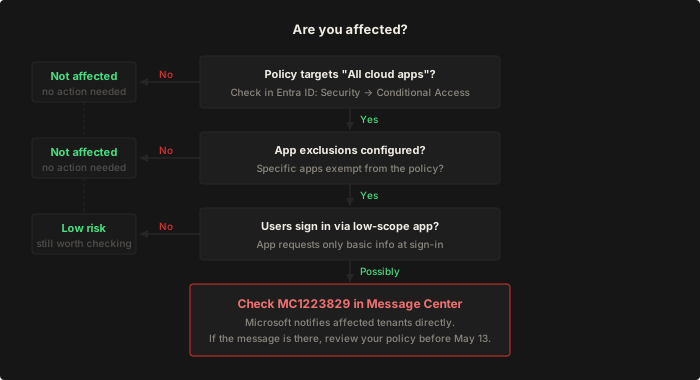
Check all three of the following:
- Your Conditional Access policy targets All resources (formerly All cloud apps)
- You have configured resource exclusions: specific apps that are exempt from the policy
- Non-excluded apps exist where sign-ins request only limited basic information
If all three are true, sign-ins to non-excluded apps that were silently bypassing enforcement will now be checked. Users will get an MFA prompt where they didn’t before.
Check your Message Center first. Microsoft has already notified affected tenants. Search for MC1223829 in the Microsoft 365 admin center. If that message is in your inbox, your setup meets these conditions.
What should you check right now?
Control when and how enforcement applies
Microsoft added a settings page at Baseline scopes settings in Conditional Access that gives you three options before the rollout reaches your tenant.
Enable enforcement now. You can switch to the new behavior today, before June 15. Useful for validating impact in a test tenant first. Go to aka.ms/BaselineScopesSettingsUX, select Enable enforcement, save. Revert at any time with Disable enforcement.
Customize behavior per policy. If specific policies have scenarios that need the legacy behavior to stay intact, you can scope the exemption to those policies only, without affecting the rest of your tenant:
- Register a new single-tenant app in Entra ID. No extra configuration needed; it serves as a placeholder.
- Exclude that placeholder app from the relevant Conditional Access policy.
- In the Baseline scopes settings, select Customize behavior and choose the placeholder app.
Baseline scopes for that policy are now evaluated against the placeholder. Because the placeholder is excluded from the policy, enforcement does not apply. All other policies still enforce normally.
Disable enforcement (not recommended). Microsoft’s documentation explicitly warns that “selecting this option disables enforcement for all policies in the tenant, which could create gaps in your Conditional Access coverage.” Only relevant as a last resort while completing an audit.
Run the automated check
Tenant Wizards has published a PowerShell script that audits your tenant directly. It lists all relevant CA policies sorted by state, detects legacy authentication sign-ins that will break after enforcement, and outputs an HTML report you can save or share. Requires the Microsoft Graph PowerShell SDK and delegated permissions. No app registration needed.
Get-CAEnforcementReport.ps1 on GitHub
Microsoft has also published a script in the Entra documentation that takes a different approach: it inventories apps with pre-authorized delegated consent grants containing only the affected scopes. It doesn’t catch apps that request additional scopes dynamically, but it gives a useful starting list for auditing OAuth consent grants directly. Identify affected apps: Entra documentation
If you prefer to check manually, the steps below cover the same ground.
Review your policies
Open the Entra ID admin center and navigate to Security, Conditional Access, Policies. Look for any policy where the target is set to “All resources” and one or more apps are excluded at the same time. No such combination? You can stop here.
Check whether affected apps can handle MFA
Modern applications support MFA by default. To test: sign in to a potentially affected app from an unfamiliar network or a private browser session from a different device. If you are asked to verify your identity and it completes successfully, the app handles it fine. If the login hangs or fails, it does not.
For third-party integrations, check the vendor documentation for “modern authentication” or contact their support team. For older in-house apps or legacy systems: these cannot handle an MFA challenge at all. They will not prompt. They will fail silently. Treat those as the highest priority to review.
Prioritise automation and scripts
Any script or scheduled task that authenticates non-interactively is in scope. Go through your environment and identify everything that signs in with stored credentials.
The same applies to service accounts and shared accounts used in modern OAuth applications. If those accounts authenticate through an app that requests only basic sign-in scopes, they will now receive an MFA challenge they cannot complete: no authenticator app, no phone number, no fallback. The result is a silent break with no error that points back to Conditional Access. Microsoft has published a script to inventory apps with pre-authorized baseline-only delegated permissions that gives you a starting list for this specific scenario.
For each one, you have three options:
- Move it to a service principal with a proper app registration. Service principals are excluded from user-scoped Conditional Access by default and the right long-term solution for automation.
- Add the app explicitly to your exclusion list with a documented reason and a review date.
- Accept that it will break and plan accordingly.
Option 1 is the correct answer for anything running in production. Option 2 is acceptable short-term if you document it. Option 3 is only acceptable if the automation is genuinely expendable.
Check specific environments if applicable
If you use device management through Intune or Jamf, or run Azure Virtual Desktop, verify those connection flows too. The chance of impact is small, but worth a few minutes before the rollout reaches your tenant.
What should you check after the rollout?
Monitor your sign-in logs
A few days after the rollout, open sign-in logs in the Entra admin center. Filter on Conditional Access results and look for unexpected blocks or new MFA prompts. This points you directly to any app that needs attention.
Tenant Wizards has published a monitoring script for after June 15. It identifies which CA policies are in scope, queries sign-in logs for those policies only, and cross-checks results against the week before June 15 to filter out sign-ins that were already being enforced before the change. What remains is what genuinely changed. Exports as an HTML report with CA failures and MFA-required sign-ins grouped by application, with the enforcing policy shown per entry.
Get-CAEnforcementMonitor.ps1 on GitHub
What happens if you don’t act?
For most users: nothing dramatic. They will be prompted for MFA where they weren’t before, call the helpdesk confused, and the issue resolves itself once they complete the prompt. A few tickets, some noise, resolved within minutes.
For automation, scripts, and legacy integrations that cannot handle MFA challenges: those will fail outright. No prompt, no fallback. If that describes anything in your environment, act before June 15.
Received the Message Center notification?
Then Microsoft detected that your tenant is potentially in scope. Work through the steps above and make any adjustments before June 15 if needed.
Fifteen minutes of checking now saves a queue of helpdesk tickets later.
Is your Conditional Access actually enforcing what you think it is?
This change makes many environments genuinely more secure, because many of them were not as secure as they appeared. If your tenant matches the conditions above, your Conditional Access policy has not been fully enforced for apps outside your exclusion list. Sign-ins that should have required MFA to access your environment did not require it.
That is not something you can address retroactively. You cannot go back and require MFA for sign-ins that already happened. But you can make sure the policy means what you think it means from this point forward.
It is also a good moment to review your Conditional Access configuration more broadly. Any account or app that sits outside your policies is worth confirming is intentional. Exceptions that were created quickly and never reviewed are the most common reason a policy looks complete on paper but leaves gaps in practice. A policy covering all users with no exceptions is harder to bypass than one with twenty exclusions nobody remembers adding.
If you make this a habit after every Microsoft enforcement change, you spend less time firefighting and more time knowing your tenant is actually in the state you think it is.